Flutter Integration
This guide will help you configure your Flutter app for ChottuLink Dynamic Links. You can complete this setup either during the initial onboarding or later from your project settings.
Prerequisites
Before integrating ChottuLink into your Flutter app, ensure you have the following:
Development Environment
- Flutter SDK installed (Flutter
v3.3.0or later recommended) - Dart SDK installed (Dart
v3.1.0or later recommended) - A working Flutter project targeting iOS
15.0+and Android5.0+ (API 21+) - Xcode
16.2or later installed (for iOS) - Android Studio or other IDE with Android SDK installed
- Physical devices or simulators/emulators to run your app
- Git for version control
Dart v3.5.0 is supported starting from ChottuLink v1.0.11 and above.
Configure ChottuLink Dashboard
1. For iOS - Click here
2. For Android - Click here
Installation
1. Add the latest ChottuLink SDK to your Flutter project:
dependencies:
  flutter:
    sdk: flutter
  chottu_link: ^1.1.4
Click here to get the latest version.
2. Then run:
flutter pub get
Platform Specific Configurations
1. For iOS
Configure Associated Domains
Associated Domains are configured to securely link your app with your website. Without this setup, features like Universal Links won't function properly, resulting in a less seamless user experience.
- Open your project in Xcode
- Select your project in the navigator
- Select your target under TARGETS
- Click on the "Signing & Capabilities" tab
- Click the "+" button in the top-left corner of the capabilities section
- Search for and select "Associated Domains"
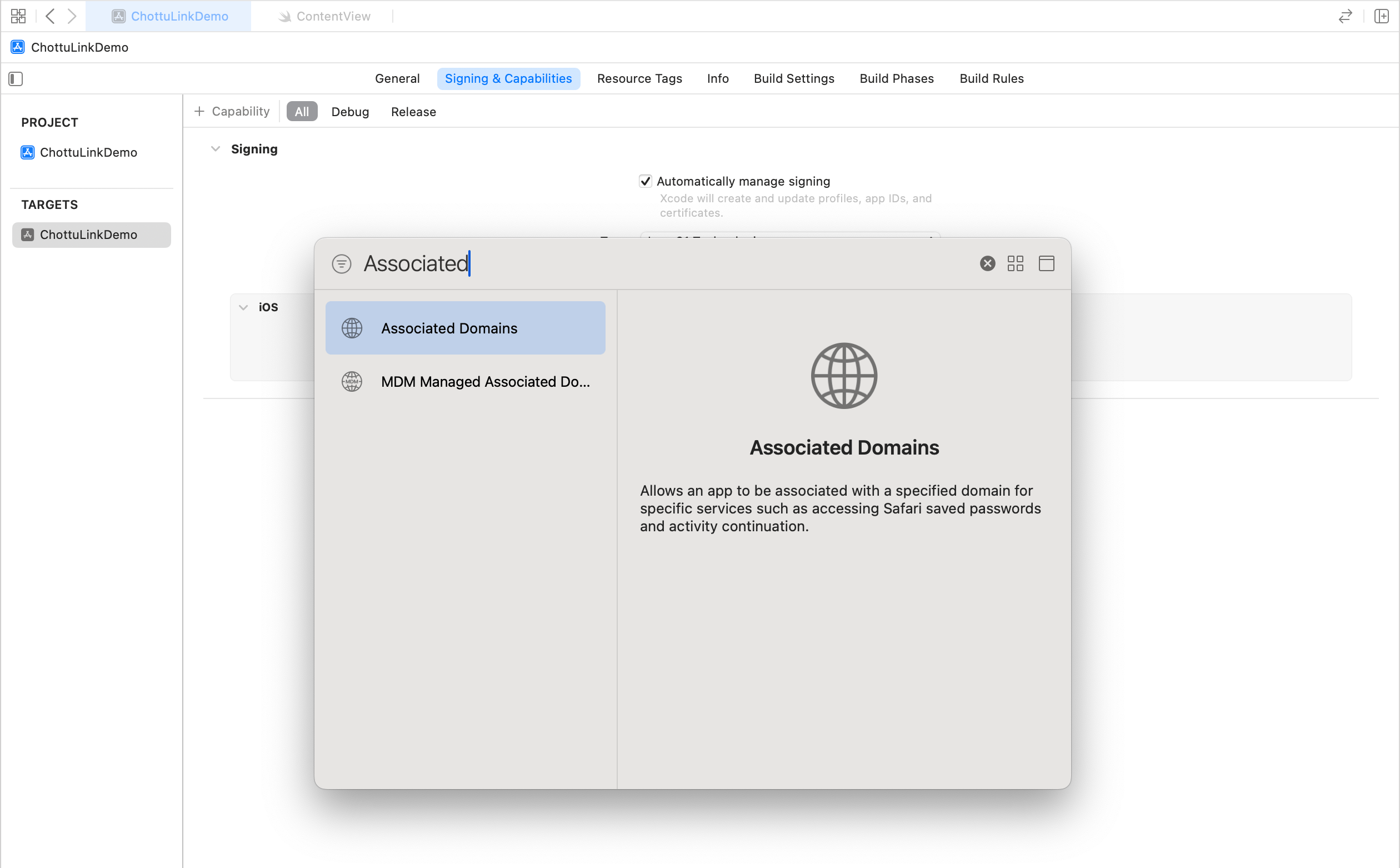
- Add Your Domain
-
In the Associated Domains section that appears, click the "+" button under "Domains"
-
Add your domain using the following format:
applinks:your_dynamic_links_domainFor example, if your domain is
yourapp.chottu.link, you would add:applinks:yourapp.chottu.link
-
2. For Android
Update Your App's Manifest File
Your app's AndroidManifest.xml file needs a couple of things:
- The internet permission (if you haven't added it already).
- To know which part of your app should open when a ChottuLink URL is clicked.
Here's how it might look. Make sure to change the highlighted parts!
<activity
    android:name=".MainActivity"
    android:exported="true"
    android:launchMode="singleTop"
    android:taskAffinity=""
    android:theme="@style/LaunchTheme"
    android:configChanges="orientation|keyboardHidden|keyboard|screenSize|smallestScreenSize|locale|layoutDirection|fontScale|screenLayout|density|uiMode"
    android:hardwareAccelerated="true"
    android:windowSoftInputMode="adjustResize">

    <meta-data
        android:name="io.flutter.embedding.android.NormalTheme"
        android:resource="@style/NormalTheme"/>

    <intent-filter>
        <action android:name="android.intent.action.MAIN"/>
        <category android:name="android.intent.category.LAUNCHER"/>
    </intent-filter>

    <!-- Add the highlighted lines in your manifest -->
    <meta-data android:name="flutter_deeplinking_enabled" android:value="false"/>

    <intent-filter android:autoVerify="true">
        <action android:name="android.intent.action.VIEW"/>
        <category android:name="android.intent.category.DEFAULT"/>
        <category android:name="android.intent.category.BROWSABLE"/>

        <!-- Change "yourapp.chottu.link" to the special domain you set up for your ChottuLink URLs -->
        <data
            android:scheme="https"
            android:host="yourapp.chottu.link"/>
    </intent-filter>
</activity>
Remember to change:
yourapp.chottu.linkto the domain you've set up on ChottuLink Dashboard for your app's links.
Initialize the ChottuLink SDK
Note: You can get the mobile SDK API KEY from ChottuLink Dashboard API Keys section
1. Basic Initialization
Initialize the SDK in main.dart:
import 'package:chottu_link/chottu_link.dart';

void main() async {
  /// ⚠️ Make sure to call this before call ChottuLink.init(apiKey: "your_api_key_here").
  WidgetsFlutterBinding.ensureInitialized();

   /// ✅ Initialize the ChottuLink SDK
   /// Make sure to call this before using any ChottuLink features
   /// and before subscribing to ChottuLink.onLinkReceived.
   await ChottuLink.init(apiKey: "your_api_key_here");

   runApp(MyApp());
}

class MyApp extends StatelessWidget {
  @override
  Widget build(BuildContext context) {
    return MaterialApp(
      title: 'Flutter ChottuLink Demo',
      home: HomeScreen(),
    );
  }
}
2. Initialization with Options
allowedDomains — v1.1.4The allowedDomains option of ChottuLink.init() is available starting from ChottuLink v1.1.4. See Restricting which links ChottuLink handles.
ChottuLink.init() accepts an optional allowedDomains parameter (available from chottu_link v1.1.4) to control which links ChottuLink handles.
static Future<void> init({
  required String apiKey,
  List<String>? allowedDomains,
})
| Parameter | Type | Required | Description |
|---|---|---|---|
apiKey | String | Yes | Your mobile SDK API key from the ChottuLink Dashboard. |
allowedDomains | List<String>? | No | Decides which incoming links ChottuLink handles. If null or empty, all links are handled. Available from chottu_link v1.1.4. |
await ChottuLink.init(
  apiKey: 'YOUR_API_KEY',
  allowedDomains: ['shop.myapp.com'],
);
For examples and matching rules, see Restricting which links ChottuLink handles.
Restricting which links ChottuLink handles
By default, ChottuLink handles every link your app receives. Use allowedDomains when:
- your app uses ChottuLink alongside other deep link providers, or
- you want ChottuLink to handle only specific domains.
Links that ChottuLink does not handle are left to your app's own deep link handling (go_router, Navigator, etc.).
Examples
a) No list (default): all links are handled (ChottuLink & all others)
await ChottuLink.init(apiKey: 'YOUR_API_KEY');
b) One domain
await ChottuLink.init(
  apiKey: 'YOUR_API_KEY',
  allowedDomains: ['links.myapp.com'], // your branded custom domain
);
chottu.link is added automatically, so <tenant>.chottu.link links work without being listed. A branded custom domain is not. If your app uses one, you must add it to allowedDomains yourself, otherwise those links will not be handled by ChottuLink.
Matching rules
| Rule | Behavior |
|---|---|
null or empty list | All links are handled (previous behavior). |
| Non-empty list | Only links whose host matches an entry in the list are handled by ChottuLink. |
chottu.link | Added automatically. |
| Custom domain | Not added automatically. Add it yourself. |
| What is compared | Only the host. Path, scheme and query are ignored. |
| Subdomains | Match. myapp.com also matches shop.myapp.com, but not evil-myapp.com. |
| Normalization | Entries are lowercased, surrounding spaces are trimmed and a www. prefix is ignored. A full URL such as https://shop.myapp.com is accepted and its host is used. |
| Host-less links | Links without a host (for example mailto:) are always skipped once a list is set. They cannot be added to the list. |
| No usable entries | If none of the entries are usable (for example all empty strings), filtering stays off and all links are handled. |
Call order
Call ChottuLink.init() before you subscribe to ChottuLink.onLinkReceived, so the list is set before the first link arrives.
If your app is opened from a link that arrives before init() completes, the SDK holds it and checks it against your domain list after init(). You don't need to do anything extra on Android or iOS.
Migration
Existing apps need no changes. If you don't pass allowedDomains, ChottuLink keeps handling all links as before.
Next Steps
After completing the Flutter setup: