Unity Integration
This guide will help you configure your Unity app for ChottuLink Dynamic Links. You can complete this setup either during the initial onboarding or later from your project settings.
Prerequisites
Before integrating ChottuLink into your Unity app, ensure you have the following:
Development Environment
- Unity Editor – Latest recommended version
- Unity project – Set up and targeting iOS 15.6+ & Android 6.0+ (API 23+)
- Xcode 16.2+ – For building iOS apps
- Android Studio (or any IDE with Android SDK) – For building Android apps
- Test devices – Physical devices or simulators/emulators
- Git – For version control
Configure ChottuLink Dashboard
1. For iOS - Click here
2. For Android - Click here
Installation
1. Download the ChottuLink Unity SDK.
2. Import the
ChottuLink.unitypackagefile into your Unity project by selecting:
Assets→Import Package→Custom Package..., then chooseChottuLink.unitypackageand import all assets.
During package import, make sure to enable the mainTemplate.gradle checkbox.
If you choose not to import it and already have a mainTemplate.gradle file in your project, you must manually add the following three dependencies to the dependencies section of your existing mainTemplate.gradle:
implementation 'com.google.code.gson:gson:2.12.1'
implementation 'com.squareup.okhttp3:okhttp:4.12.0'
implementation 'com.android.installreferrer:installreferrer:2.2'
Platform Specific Configurations
1. For iOS
Configure Associated Domains
Associated Domains are configured to securely link your app with your website. Without this setup, features like Universal Links won't function properly, resulting in a less seamless user experience.
- Open your project in Xcode
- Select your project in the navigator
- Select your target under TARGETS
- Click on the "Signing & Capabilities" tab
- Click the "+" button in the top-left corner of the capabilities section
- Search for and select "Associated Domains"
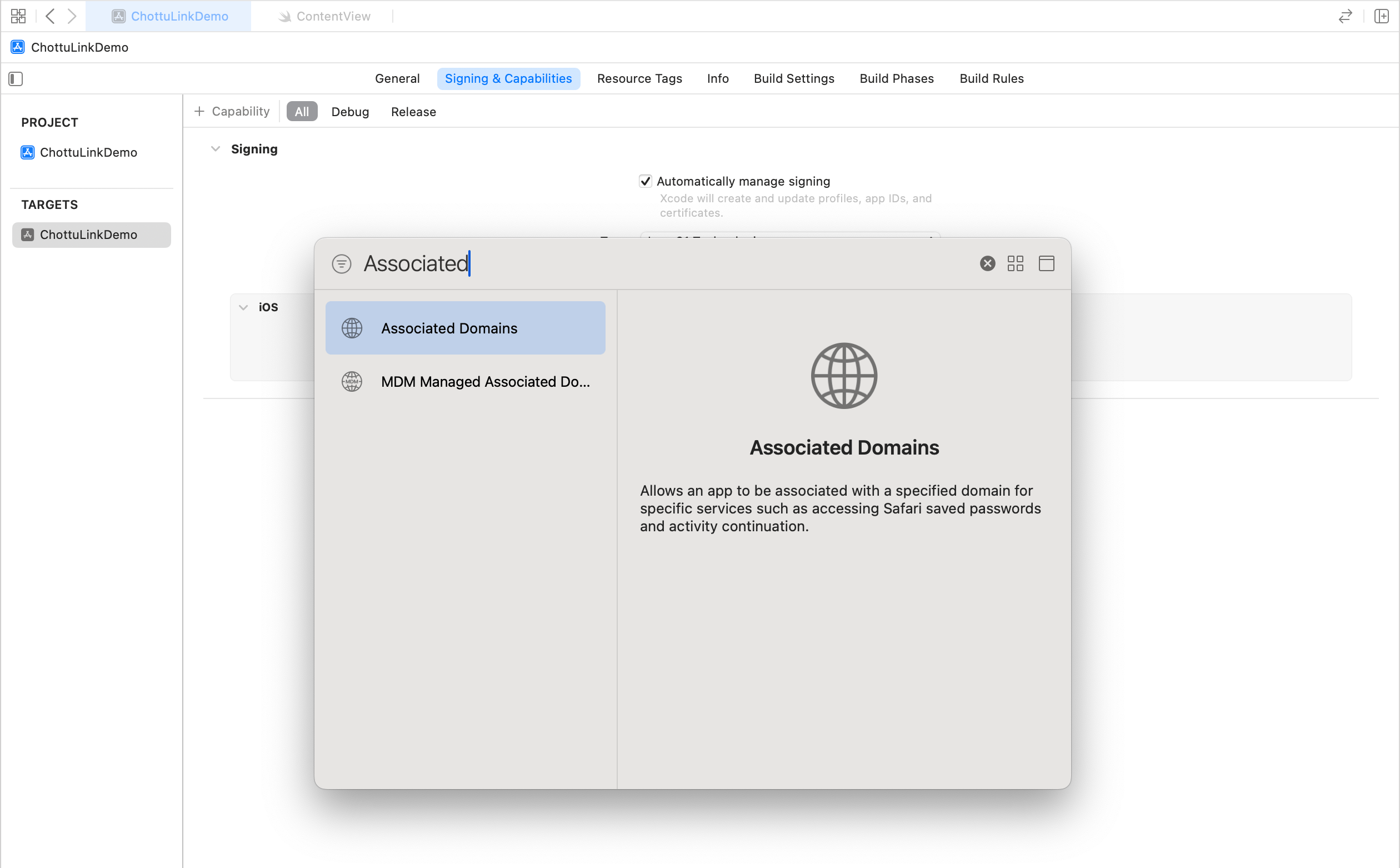
- Add Your Domain
-
In the Associated Domains section that appears, click the "+" button under "Domains"
-
Add your domain using the following format:
applinks:your_dynamic_links_domainFor example, if your domain is
yourapp.chottu.link, you would add:applinks:yourapp.chottu.link
-
2. For Android
1. Update Your App's Manifest File
- If an
AndroidManifest.xmlis already present in your project Add the following<intent-filter>inside your deep link activity:
<intent-filter android:autoVerify="true">
    <action android:name="android.intent.action.VIEW" />
    <category android:name="android.intent.category.DEFAULT" />
    <category android:name="android.intent.category.BROWSABLE" />

    <data android:scheme="http" />
    <data android:scheme="https" />
    <data android:host="yourapp.chottu.link" />
</intent-filter>
Remember to change:
yourapp.chottu.linkto the domain you've set up on ChottuLink Dashboard for your app's links.
- If
AndroidManifest.xmlis not present in your project, follow the steps below to create one:- In Unity, go to Edit → Project Settings.
- Select the Android tab.
- Expand Publishing Settings.
- Under Build, enable Custom Main Manifest.
This will generate an AndroidManifest.xml file at Assets/Plugins/Android/AndroidManifest.xml, where you can add the above <intent-filter>.
2. Add / Modify Entry Point Activity
To receive links when the app is in the foreground, call ChottuLinkPlugin.onNewIntent(intent) inside the onNewIntent() method of your custom entry point activity. Follow these steps:
Step 1 : If a custom entry point activity already exists in your project, proceed to Step 3.
Step 2 : If no such activity exists:
- Create a new custom entry point activity (e.g., MainActivity).
- Implement the
onNewIntent()method and callChottuLinkPlugin.onNewIntent(intent)inside it.
Step 3 : Add below code
 @Override
 protected void onNewIntent(Intent intent) {
     super.onNewIntent(intent);

     ChottuLinkPlugin.onNewIntent(intent);
    // Your additional code if any
 }
Initialize the ChottuLink SDK
Note: You can get the mobile SDK API KEY from ChottuLink Dashboard API Keys section
Initialize the SDK :
void Start() {
   ChottuLink.Init("your_api_key");
}
Next Steps
After completing the Unity setup: